Your iPhone was designed to be irresistible. Every badge, every swipe, every auto-playing video is engineered to keep you looking. Unpredictable feeds engage the brain's reward system and increase time spent — the same mechanism that makes slot machines compelling.
But here's the thing: you don't need to delete your apps. You don't need a dumbphone. You don't need willpower.
You just need to make your phone boring.
“I didn't delete apps. I just made my phone boring 😌” — that line blew up on TikTok for a reason. It offered something rare: a middle path between cold turkey abstinence and helpless surrender.— Viral TikTok comment, 2025
This guide is that middle path, built on actual research, not vibes. Every step is something you can do in the next 20 minutes.
Why boring works better than blocking
If you've tried iOS Screen Time limits, you already know the problem. You hit the limit. You tap “Ignore Limit.” You scroll for another hour. You feel worse than if you'd never set the limit at all.
You're not weak. The tool is flawed.
Rigid, unoverrideable blocks often trigger resistance and workarounds. Psychologists call this reactance — when you feel your freedom is threatened, you push back harder. One study found that hard blocks were “highly frustrating” even when they technically reduced usage.
Friction-based approaches work differently. Instead of taking away your choice, they add a speed bump — a small, deliberate pause that interrupts autopilot behavior. In a 2023 PNAS field study of the one sec app (280 participants, 6 weeks), a one-second dismissible delay led users to close the target app 36% of the time after the pause, and total opening attempts dropped 37% by week six — without the resistance hard blocks provoke.
That's the philosophy behind making your phone boring: reduce the pull, don't build a cage.
Strip your home screen
Your home screen is a menu of temptations. Every colorful icon is a cue. The goal is to remove those cues.
What to do
- Move all apps to the App Library. Long-press your home screen → tap the minus icon on each page → “Remove.” Apps aren't deleted — they're still searchable.
- Keep one home screen only. Put only utility apps here: Phone, Messages, Maps, Camera, Calendar.
- Remove widgets. Especially news, social, and photo widgets. Each one is a trigger.
- Use a plain wallpaper. Dark, muted, single-color. No family photos (those are for your Photos app, not your lock screen dopamine).
Why this works
You're not blocking anything. You're adding friction. To open Instagram, you now need to swipe to the App Library and search for it. That 3-second pause is often enough to break the autopilot loop.
Turn on grayscale.
This is the single most impactful change you can make.
Two separate studies show real effects: Holte & Ferraro (2020) found a 37.9-minute-per-day reduction across 161 undergraduates, and Dekker & Baumgartner (2024) found a 20-minute reduction in a one-week trial — with the specific finding that unlocks didn't change. People picked up the phone the same number of times. They just put it down faster. Color is what makes the device visually rewarding; remove it, and scrolling becomes less appealing.
How to enable grayscale on iPhone
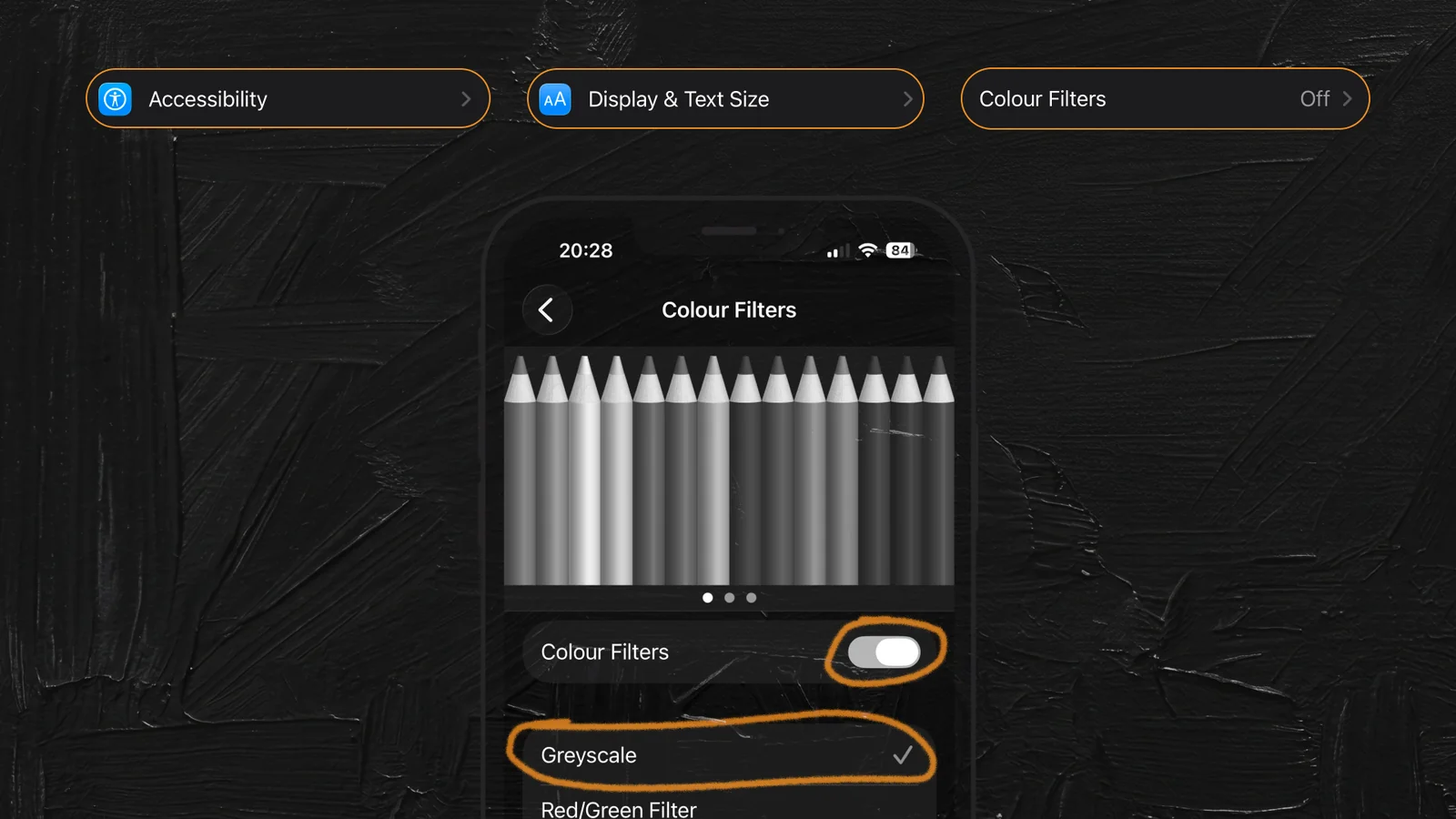
- Go to Settings → Accessibility → Display & Text Size → Color Filters
- Toggle Color Filters on
- Select Grayscale
Go to Settings → Accessibility → Accessibility Shortcut → select Color Filters.
Now triple-clicking the side button toggles grayscale on and off. Use it as an escape hatch for Maps, Photos, shopping — color becomes the exception, not the default.
What to expect
The first 24 hours feel strange. By day 3, you stop noticing. By day 7, color screens feel aggressively loud. Most people dislike grayscale at first — but the ones who stick with it past the first week see real results. The discomfort is the mechanism working.
Set up Focus Modes as friction layers
iOS Focus Modes are underrated. Most people only use Do Not Disturb. But you can create custom modes that reshape your entire phone experience by context.
Create a “Boring” Focus Mode
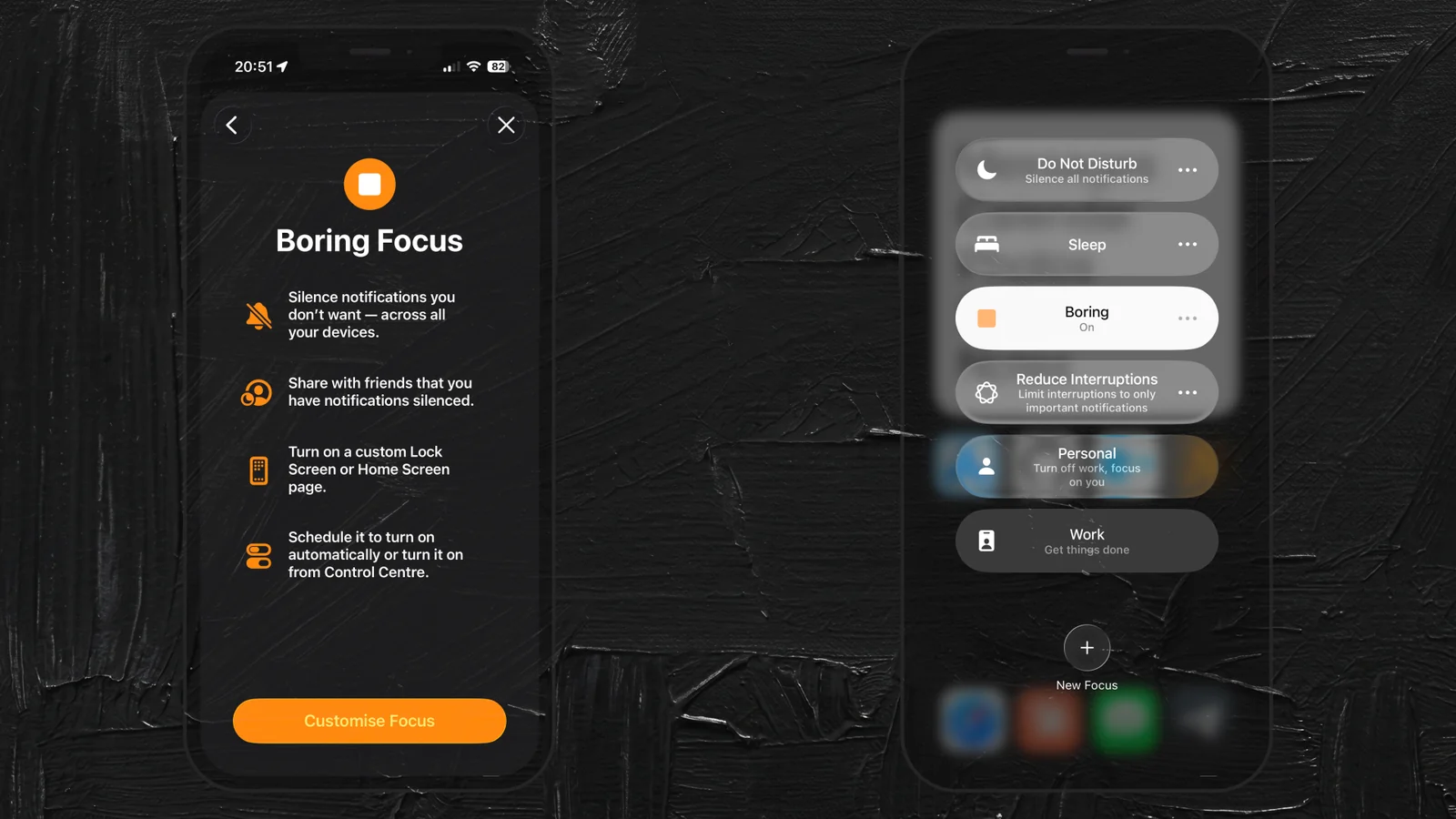
- Go to Settings → Focus → + (top right) → Custom
- Name it “Boring” or “Chill”
- Under Allowed Notifications: select only Phone and Messages
- Under Home Screen: toggle Custom Pages on and select only your minimal utility page — every other home screen page vanishes while the Focus is active
Focus Modes can hide home screen pages but they can't hide apps from the App Library. That's intentional — and it fits the thesis. The goal is friction (one extra swipe and a search), not a cage you'll learn to pick.
Create a “Sleep Wind-Down” Focus
- Same process, but schedule it automatically from 9 PM to 7 AM
- Allow only Phone, Clock, and a meditation app
- Add a Focus Filter for Appearance: enable Dark Mode. (iOS doesn't ship a brightness Focus Filter; if you want brightness to drop too, chain a Shortcuts automation to Set Brightness at 9 PM.)
Focus Modes don't just silence notifications — they hide apps, dim the home screen, and filter what's visible. Combined with grayscale, your phone at 10 PM becomes a fundamentally different device than your phone at 10 AM.
Kill infinite feeds
The infinite scroll isn't a feature — it's a trap. When Dekker, Sumter & Baumgartner (2025) swapped TikTok users from the personalized For You page to a depersonalized feed for one week, both daily frequency and duration of use dropped significantly, and self-regulation improved. The personalization itself is the engagement engine — flatten it, and the pull weakens.
But here's the catch: only YouTube ships a real autoplay kill switch. TikTok and Instagram don't let you turn autoplay off — and that refusal isn't an oversight, it's the business model. Your engagement is non-negotiable to them. Which is exactly why in-app settings can only take you so far, and why the grayscale, Focus, and App Library layers in the earlier steps matter more than any single toggle.

- Turn off YouTube autoplay. Profile → Settings → Autoplay → Off. While you're there: Settings → General → Playback in feeds → Off stops auto-advance in the home feed too.
- Harm-reduce on TikTok and Instagram. You can't stop autoplay directly — neither app exposes that setting. You can slow preloading: TikTok → Settings → Data Saver; Instagram → Settings and activity → Media → Use less cellular data. These don't fix the pull. They just give your thumb a fraction of a second more to notice.
- Use chronological feeds where available. On Instagram, tap the Instagram logo top-left → select Following. Removes the algorithmic “you might like” injections.
- Unfollow aggressively. If a follow makes you feel worse, remove it. Fewer than 200 follows gives the algorithm less to work with.
- Reduce Shorts / Reels exposure. You can't block specific features from iOS, but you can tap “Not Interested” aggressively to retrain the algorithm, and use Screen Time per-app time limits as a last resort.
Tame notifications
Batching smartphone notifications can improve well-being by reducing perceived interruptions and lowering stress. But completely muting everything can backfire — some people experience more anxiety from the silence.
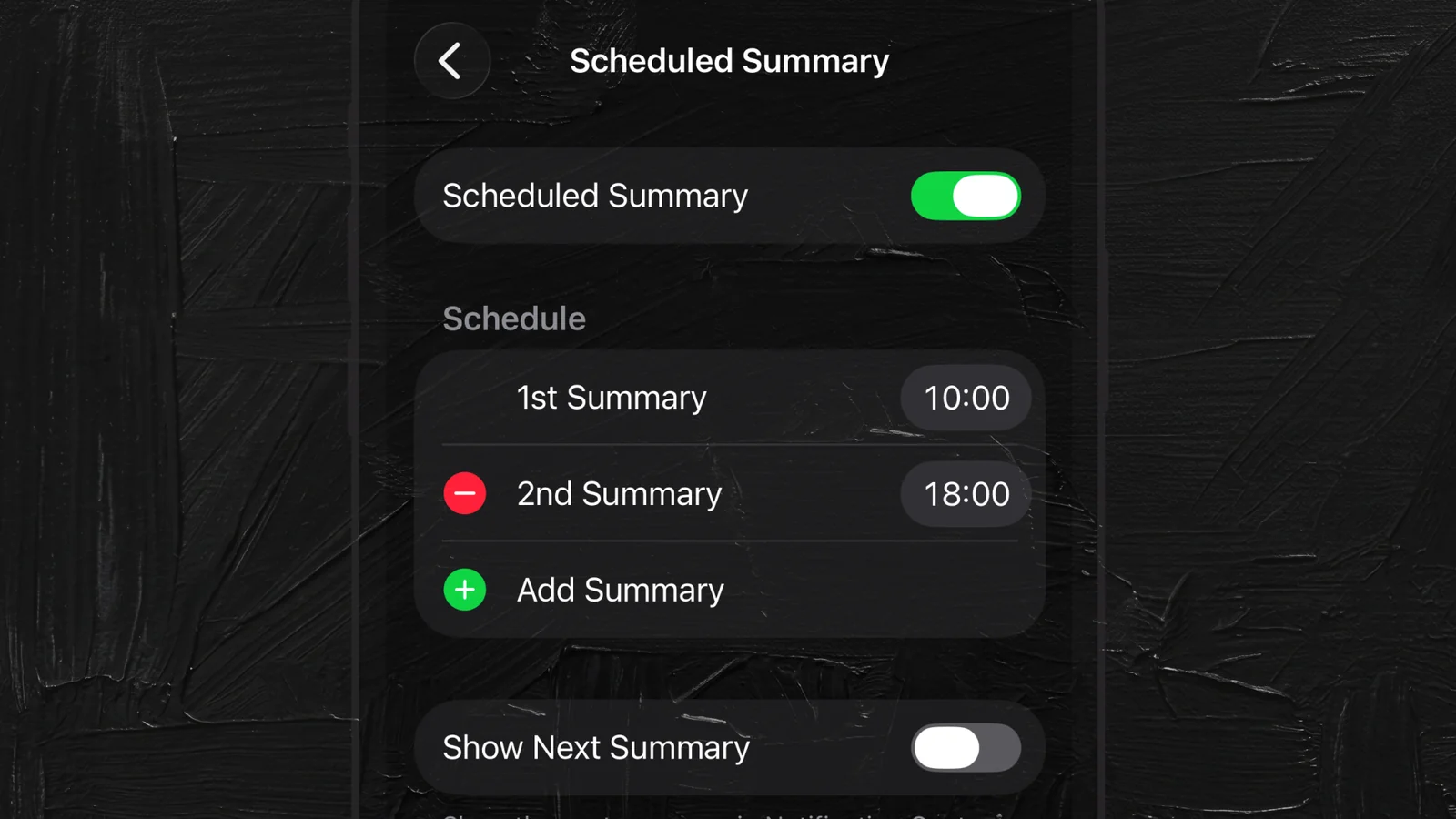
The right approach
- Batch, don't mute. Go to Settings → Notifications → Scheduled Summary. Set 2–3 delivery windows per day (e.g., 8 AM, 12 PM, 6 PM).
- Turn off badge counts. For every non-essential app, toggle off the red number badge. The badge is a visual cue designed to trigger checking behavior.
- Move notifications from banner to Delivered Quietly. This way, they appear in Notification Center but don't light up your screen or buzz your wrist.
Schedule automatic degradation
The most powerful setup combines several steps into an automated routine that activates on schedule — no willpower required.
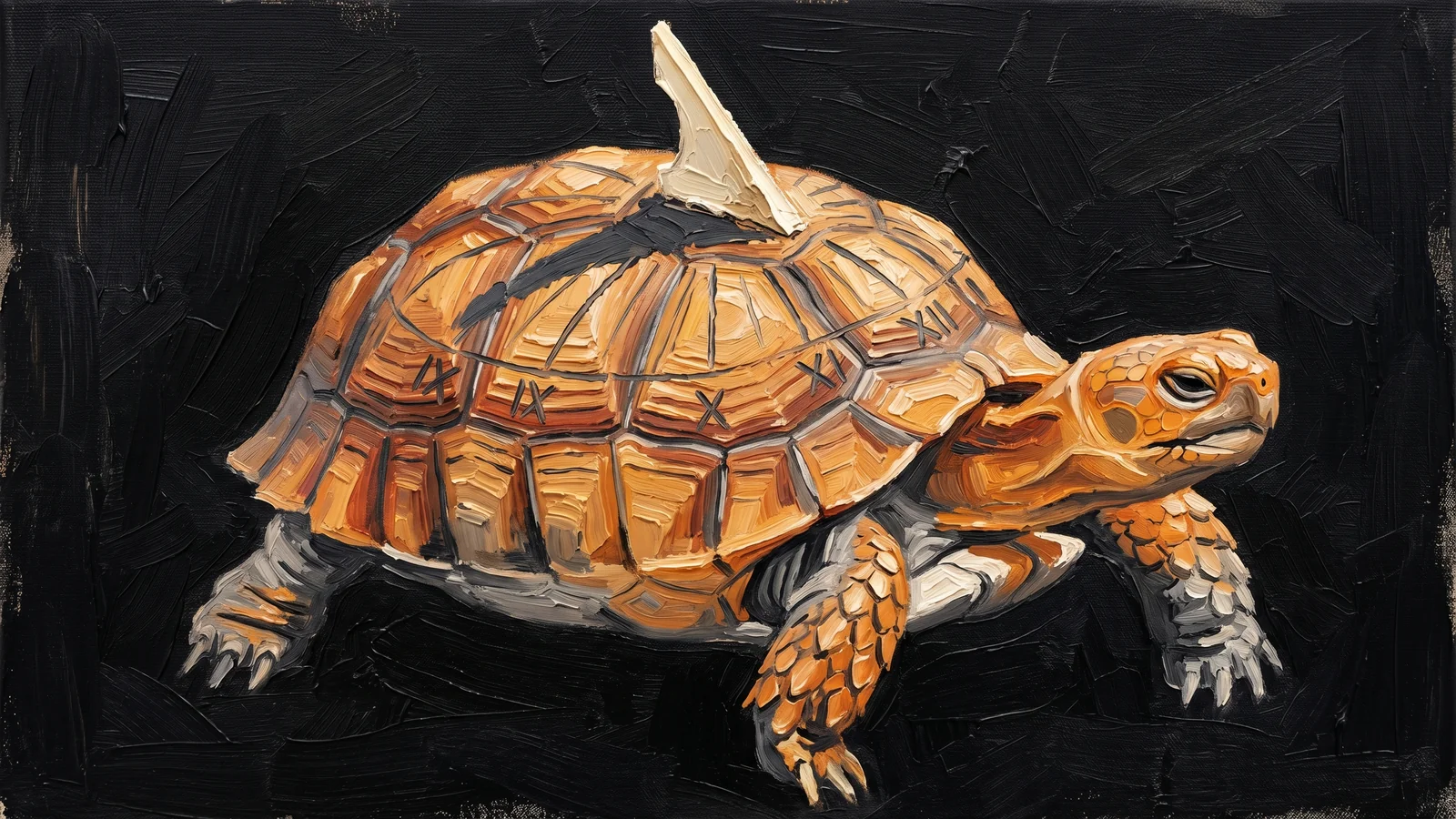
iOS Shortcuts automation
- Open Shortcuts → Automation → + → Time of Day
- Set trigger: 9:00 PM daily
- Add actions: Set Color Filters On (grayscale), Set Appearance Dark Mode, Set Low Power Mode On
- Create a reverse automation for 7:00 AM that turns everything back
The best intervention is one you don't have to remember. Automating the “boring” transformation removes the daily decision — and the daily opportunity to say “not tonight.”
The full boring phone stack
Everything combined into a single checklist:
- Single home screen with utilities only
- All apps moved to App Library
- Plain dark wallpaper
- Grayscale enabled with triple-click toggle
- “Boring” Focus Mode configured
- “Sleep Wind-Down” Focus scheduled 9 PM–7 AM
- YouTube autoplay off (the only app that lets you); TikTok and Instagram harm-reduced via Data Saver / Use less cellular data
- Instagram “Following” feed selected where available
- Notification batching enabled (2–3× / day)
- Badge counts turned off for social and entertainment apps
- Shortcuts automation for evening grayscale and dark mode
What Uglify adds to this stack
Everything above uses built-in iOS features. It works. But it has gaps:
- Grayscale is all-or-nothing — you can't desaturate Instagram while keeping Maps in color
- Focus Modes don't apply visual degradation within apps
- There's no per-app friction (a delay before opening specific apps)
- iOS can't blur content in feeds or reduce visual salience selectively
That's what Uglify does. It layers on top of your iOS setup to add per-app progressive visual degradation — three levels that escalate with how long you've been scrolling in each chosen app: Flat Grey, then Dull Dimmed, then Nuclear (inverted). Sound mutes once the filters kick in. That's the continuous, duration-aware friction that iOS alone can't do.